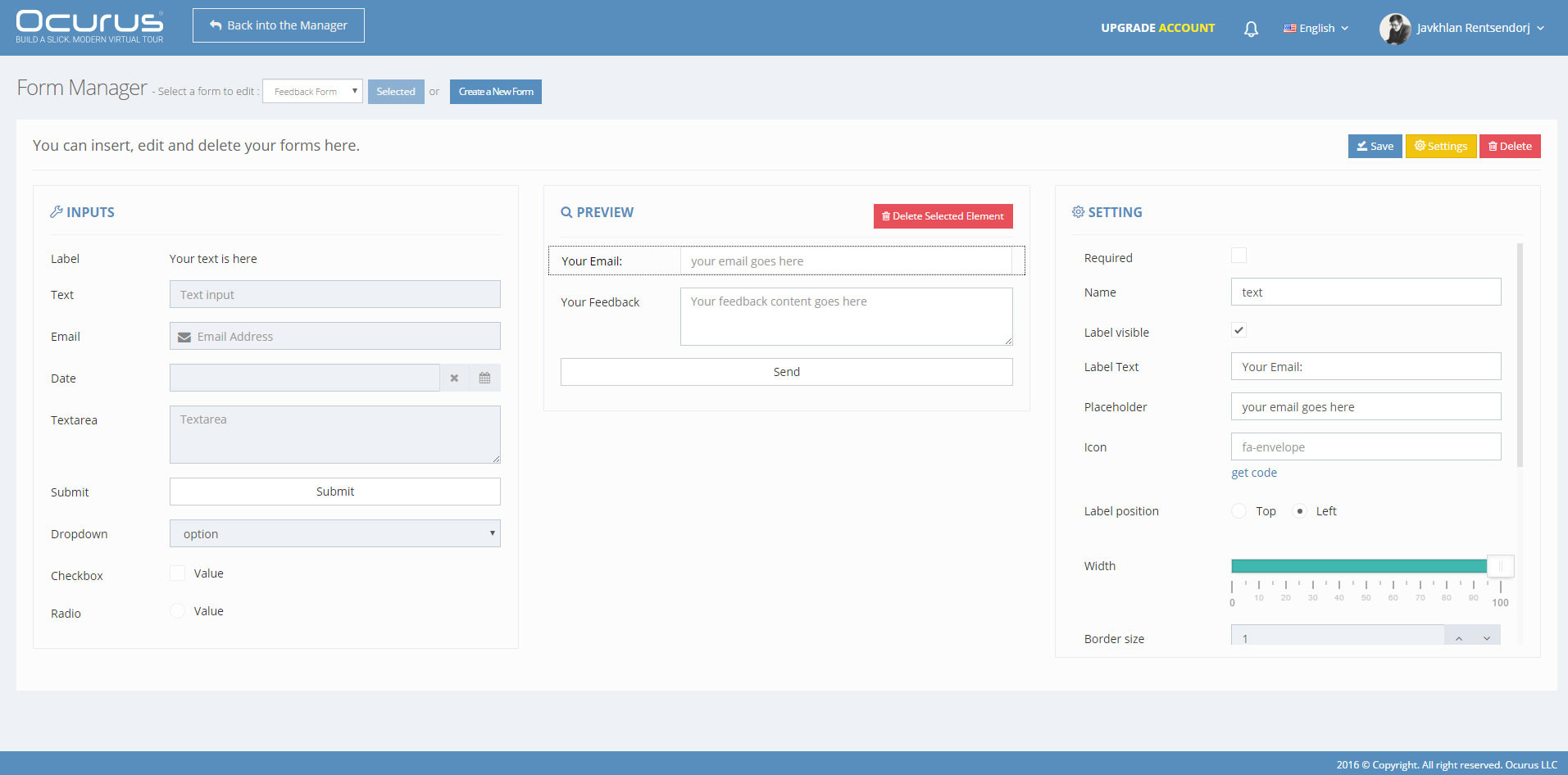
This is our form editor. As you seen it have a 3 row which is Inputs, Preview and Settings. In this tutorial I will explain everything in this page.
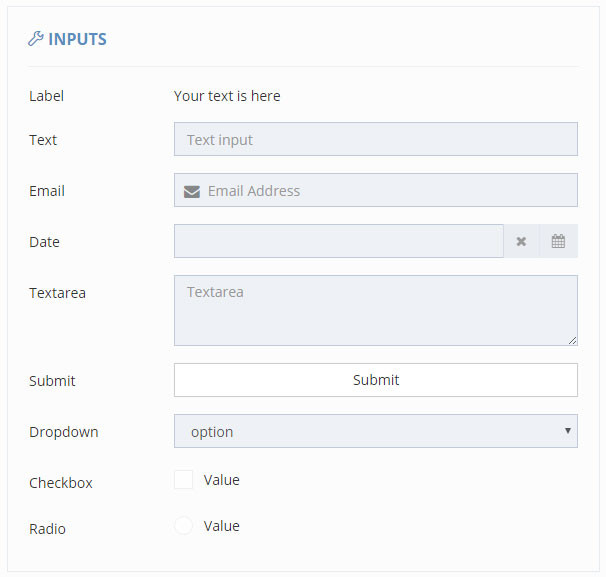 |
Inputs Section
Our form builder have following form types.
- Label - This is normal label text. You can use this as description or title of you inputs.
- Text Input - This is normal text input. You can use this to collect name, surname, phone number and many other purpose.
- Email Input - This field is designed to collect email. It have a email validation function.
- Date Input - Most of booking or reservation module needs this field. Because your visitors needs to fill their arrival date.
- Textarea - Textarea is suitable for fill much texts. Comments, feedbacks or any other big texts will be filled here.
- Submit button - Every types of form need at least 1 submit button to submit form datas into your email.
- Drop down selection - Dropdown selection field to select single option from multiple options.
- Checkbox - Select multiple items from multiple options
- Radio box - Choose only one option from multiple options
|
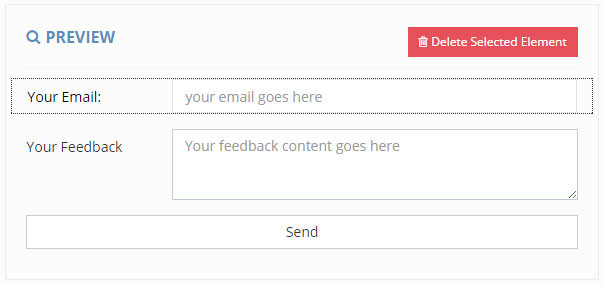
Preview Section
This is your preview section. Click on any fields in "Input Section" to add it into your "Preview Section".
|
 |
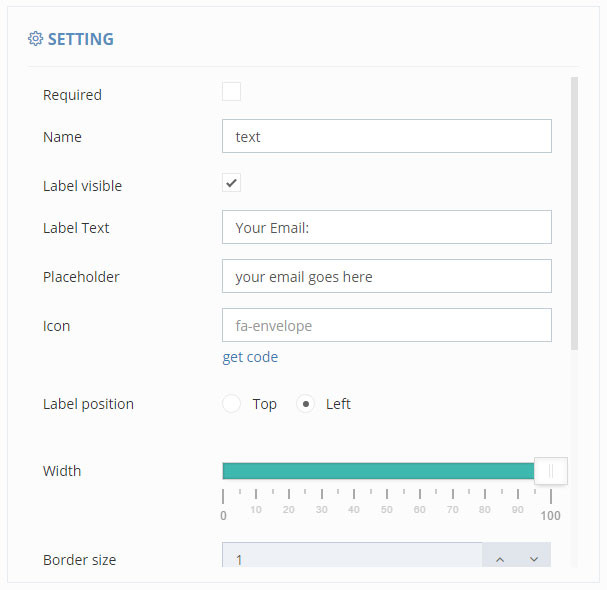 |
Settings Section
You can view this section through click in the field of "Preview section". In this section you can manage settings attributes of form field.
- Required - If your field is required to fill, you should enable it.
- Name - Every forms created in Ocurus have a email that used to send filled datas. So that data must have a unique name on it.
- Label Visible - Label is normal texts that is identify it's next form field. You can make it visible or invisible with this row.
- Label Text - You can write your label text here.
- Placeholder - Placeholder is a text indicator that is placed current form field.
- Icon - We are accepting font-awesome icons on form fields. So you can copy and paste your font-awesome icon code in here.
- Label Position - In this row, you can change your label position.
- Width - Sometimes, users needs to place 2 form fields in 1 row. In this case, you can change your fields width to solve it.
- Border Size - If you needs to more thicker borders on the fields, you can change it in here.
Also there is some form attributes left to explanation. But we believe you can figure it out.
|